Wavesurfer
Wavesurfer 1.0
Wavesurfer is a multi-effects processor. It puts six effects in one window: Glue, Neural Amp, Phaser, Delay, Neural Reverb and Autopan. Next to them sits a Filter Pulse with a 16-step pattern, and under them a small master section with tone, stereo image and dry/wet. Two of the effects, the Neural Amp and the Neural Reverb, use neural network models.
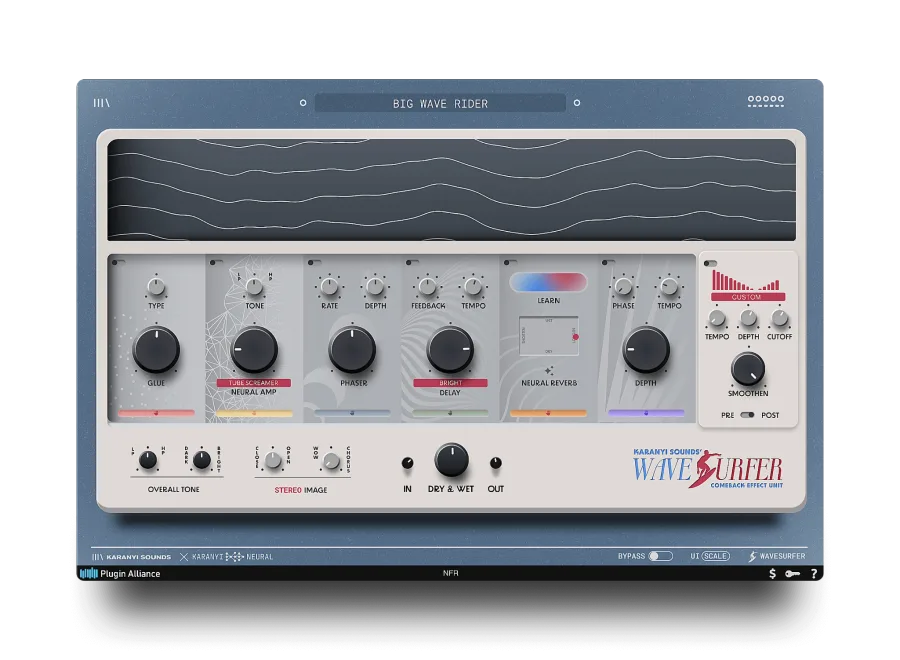
Every effect has its own bypass switch, so you can build a chain from only the parts you need. You can also drag the effect panels to change the order of the chain. Wavesurfer comes as VST3 and AU.
What it is for
Section titled “What it is for”- Keys and synths: warm saturation, a slow phaser and a wide reverb for pads and pianos.
- Drums and bass: glue and amp drive for weight, rhythmic Filter Pulse patterns for movement.
- Vocals: short delays, a reverb that fits the voice, a little saturation on the way in.
- Whole mixes and sound design: one plugin for movement, tone and space, with the order of the effects in your hands.
The window at a glance
Section titled “The window at a glance”| Area | What it does | Page |
|---|---|---|
| Preset bar (top) | Step through presets or open the preset manager | Presets |
| Wave display | Moving lines that react to the level of the sound | Controls |
| Glue | A compressor with three types | Controls |
| Neural Amp | Saturation from two neural network models | Controls |
| Phaser | A phaser with rate and depth | Controls |
| Delay | A feedback delay with six filter characters | Controls |
| Neural Reverb | A reverb with a Learn button and an XY pad | Controls |
| Autopan | Moves the sound between left and right | Controls |
| Filter Pulse (right) | A 16-step pattern that moves a filter | Controls |
| Overall Tone, Stereo Image | Filter, tilt EQ, width and chorus for the whole output | Controls |
| IN, Dry & Wet, OUT | Input level, the main balance, output level | Controls |
| Bypass, UI Scale (bottom) | Switch the whole plugin off, make the window bigger | Controls |
Quick start
Section titled “Quick start”- Put Wavesurfer on a track as an insert.
- Pick a preset from the preset bar at the top. The presets are sorted into Keys and Synths, Rhythm Section, Movement and FX, and Mixing.
- Switch single effects on and off with the small switch in the top left corner of each panel.
- Use the big knob of each effect to set how much of it you hear.
- Use the big Dry & Wet knob in the middle of the bottom row for the overall balance.
- Want to change the order? Drag a panel onto another one.
Next: Controls
docs v0.0.14