Update a plugin
Our plugins check for a new version on their own. You can also check by hand at any time. Updating is the same as installing: you download the new installer and run it over the old version.
Updates never touch your settings, your license or your saved presets. Your DAW projects open exactly as before.
When an update is available
Section titled “When an update is available”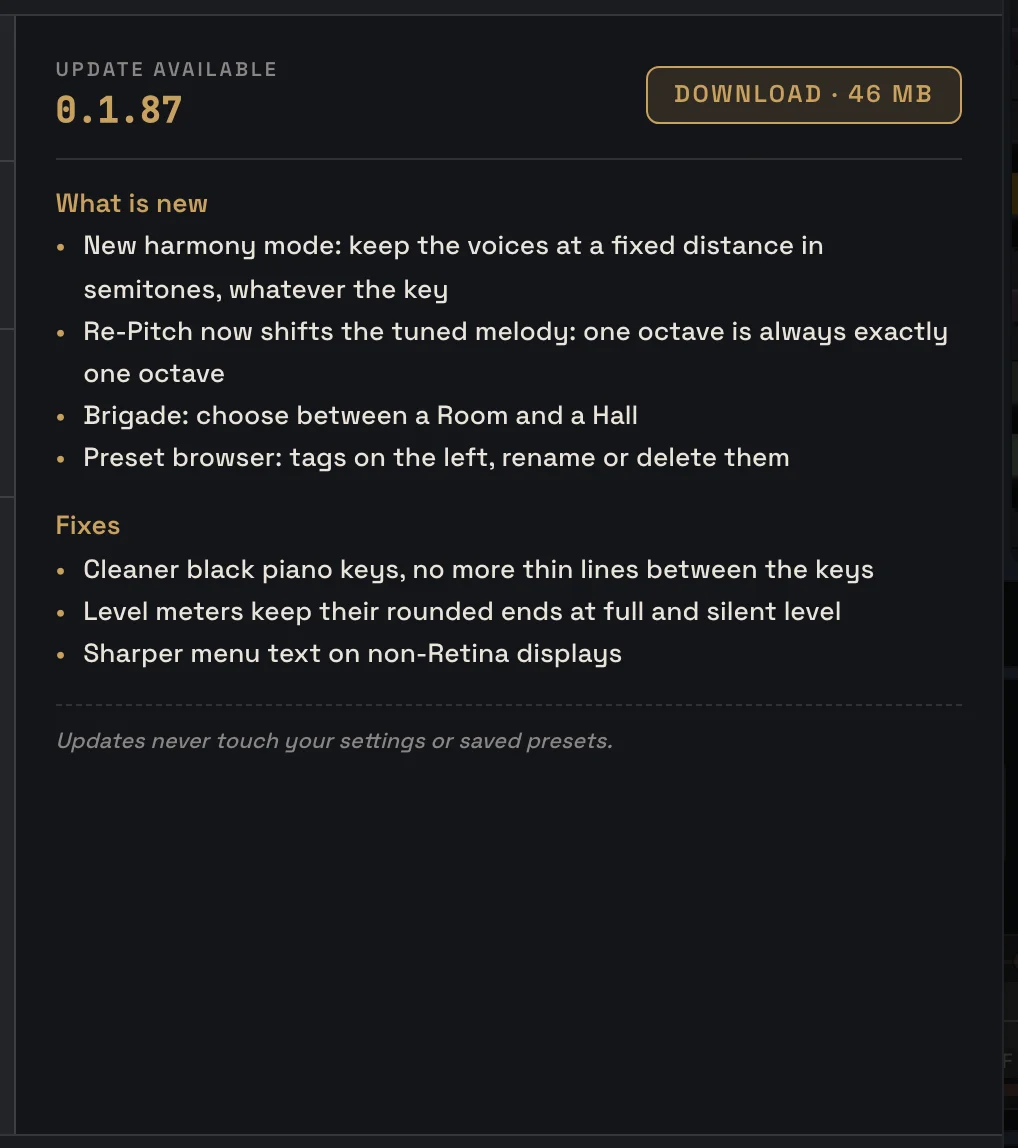
When a newer version is out, the UPDATE AVAILABLE window opens by itself when you open the plugin.
- Left side: who the plugin is registered to, and the version you have now.
- Right side: the new version number and what’s new in it.
- DOWNLOAD downloads the installer for your system (macOS or Windows) in your browser.
- CLOSE (or ×) means “later”: the plugin won’t remind you about this version again. You can still update any time from the About page.
Checking by hand
Section titled “Checking by hand”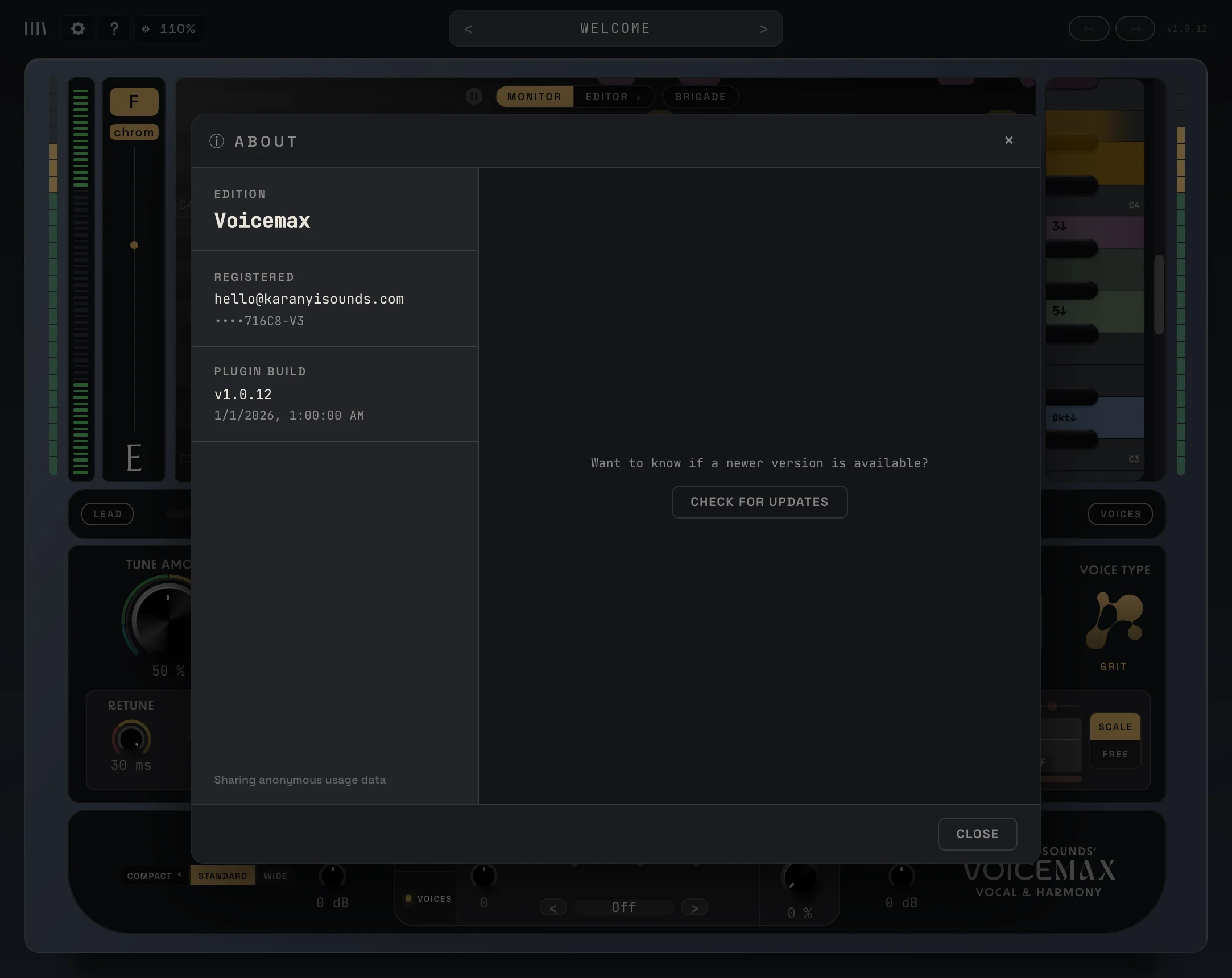
- Click the gear in the plugin’s header.
- Click About.
- Click CHECK FOR UPDATES.
You get one of three answers:
- Up to date: you already have the newest version.
- Update available: the update window opens with the download button.
- Could not reach the update server: check your internet connection and click Check again.
Installing the update
Section titled “Installing the update”- Save your project and close your DAW. A plugin can’t be replaced while it is loaded.
- Run the installer you downloaded. It replaces the old version.
- Open your DAW. Your projects load with the new version and all your settings.
If your DAW doesn’t pick up the new version, rescan your plugins in the DAW’s plugin settings. See Install a plugin for the folders.
You can also always get the newest installer from the Downloads page.
docs v0.0.5