Settings
The header
Section titled “The header”
From left to right:
- Gear: opens the Settings menu (this page).
- ?: the guided tours. They walk you through the plugin step by step, live, with every knob working. There is one for the main window and one for the editors.
- Zoom (the percentage): scales the whole plugin window.
- ‹ preset name ›: the presets. See Preset browser.
- Undo / Redo (the two arrows on the right): step back and forward through every move you made, one gesture at a time, including your editor changes.
- Version number: the version you are running.
Click a section in the Settings menu to open it. Only one section is open at a time.
Language
Section titled “Language”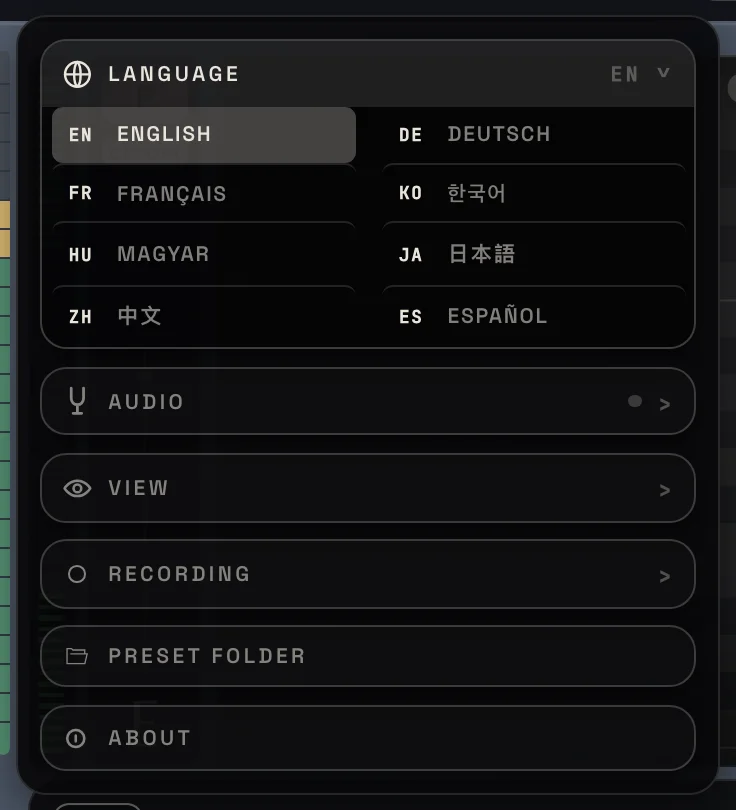
The language of the whole plugin: English, German, French, Korean, Hungarian, Japanese, Chinese and Spanish. The change is instant.
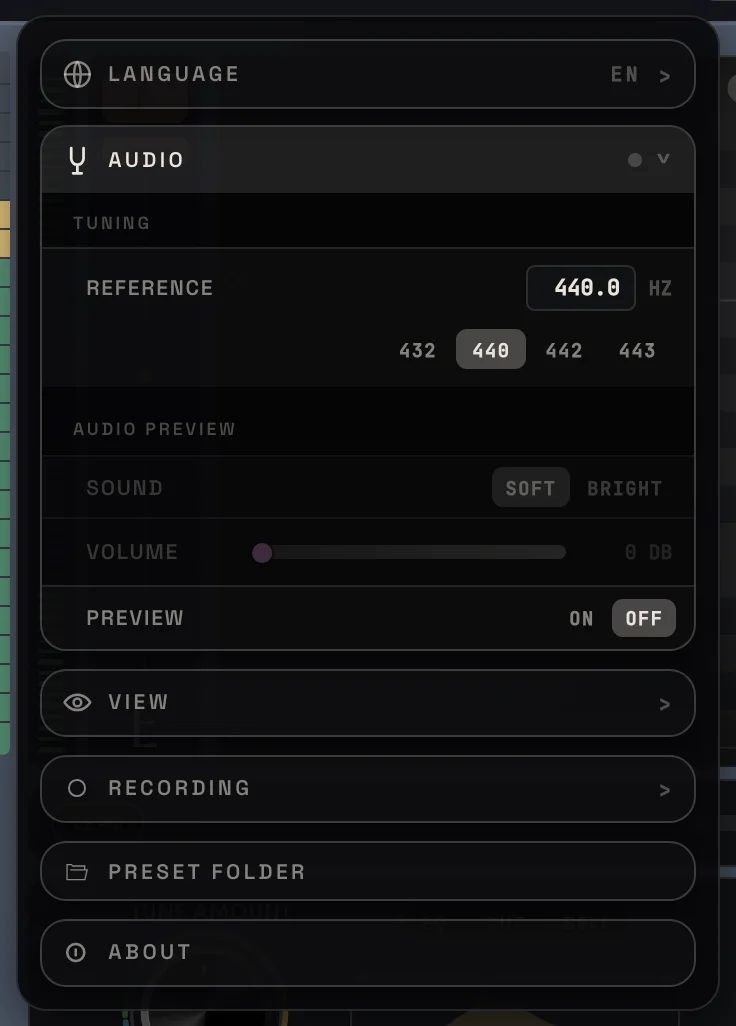
- Tuning reference: the pitch of the note A that all tuning is measured against. The default is 440 Hz. If your song or your instruments are tuned differently, set it here: type a value between 430 and 450 Hz and press Enter, or click one of the shortcuts (432, 440, 442, 443). The ↺ button resets it to 440 Hz.
- Audio preview: the short piano sound you hear when you click a key, a chord in the Harmony Builder or a note in the editors.
- Sound: Soft is a gentle piano-like tone, Bright is sharper with the same short decay.
- Volume: 0 is the standard level, drag right to make the preview louder. Double-click resets it.
- Preview: turns the preview sound on or off everywhere in the plugin.
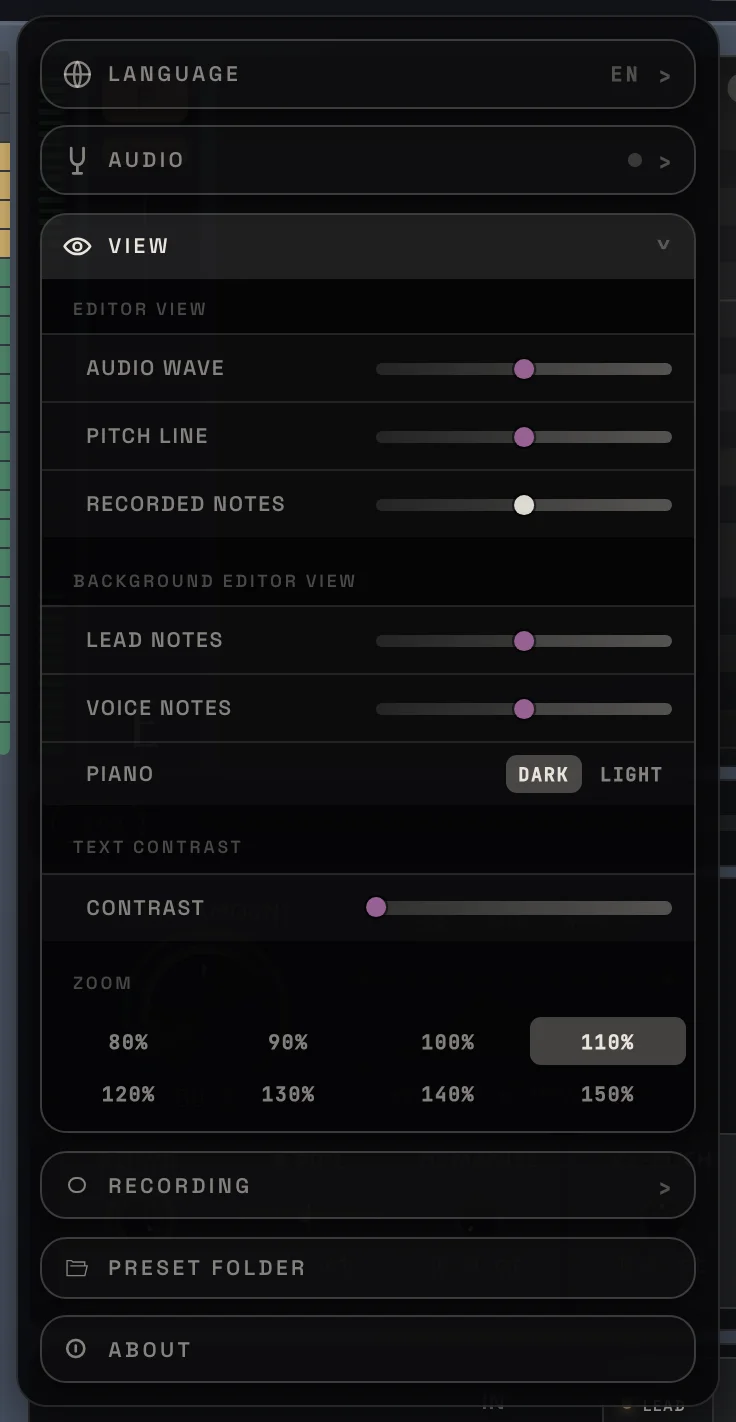
How things look. None of these change the sound.
- Editor view
- Audio wave: how strong the waveform of your recording is behind the notes in both editors.
- Pitch line: how bright the tuned pitch line is in both editors.
- Recorded notes: contrast and line width of the MIDI recording outlines in both editors.
- Background editor view
- Lead notes: how visible your lead notes are behind the harmonies in the Harmony Editor.
- Voice notes: how visible the frozen harmony and chord notes are behind the lead in the Lead Editor.
- Piano: dark keys (the default) or classic light keys.
- Text contrast: drag right for brighter, easier-to-read labels. Double-click resets it.
- Zoom: the size of the whole plugin window, from 80 % to 150 %. Same as the zoom button in the header.
Double-click a slider to reset it.
Recording
Section titled “Recording”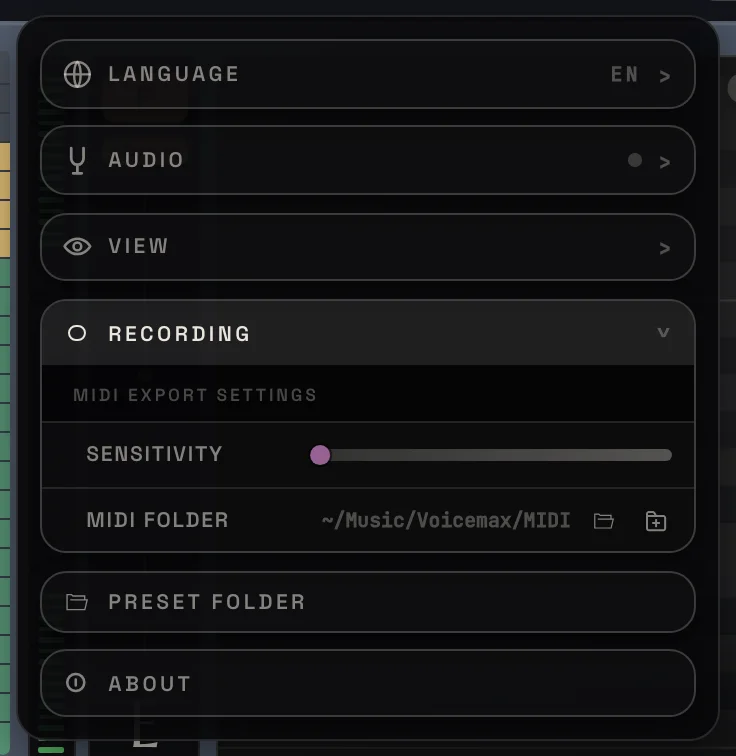
The options for MIDI recording in the editors.
- Sensitivity: how clean the exported MIDI is. Left keeps every note, right keeps only the most stable notes. Frozen notes always stay.
- MIDI folder: where the .mid files are saved. The folder icon opens it on your computer, the icon next to it lets you choose another folder.
Preset folder
Section titled “Preset folder”Opens the folder where your presets are stored. See Preset browser.
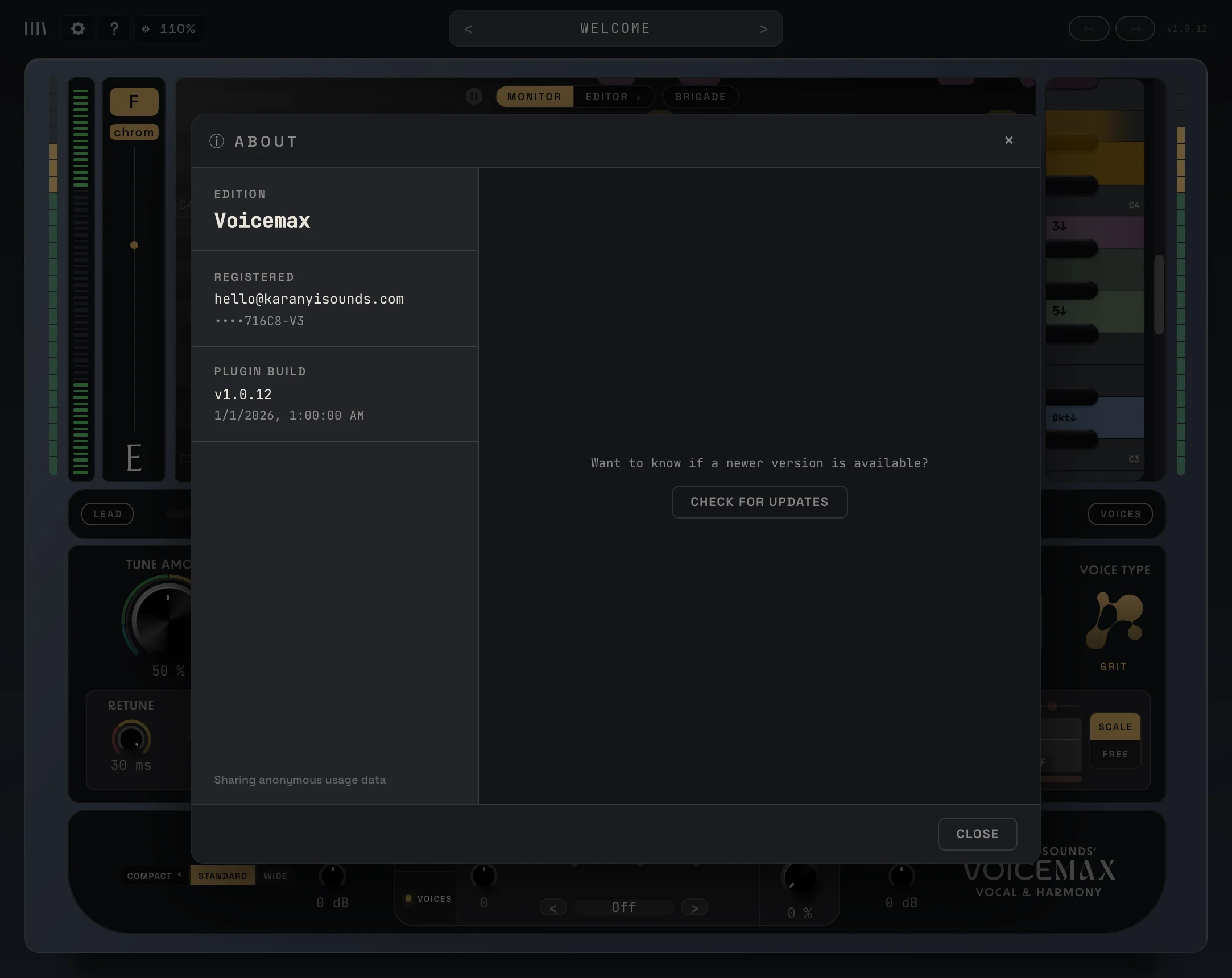
Shows who the license is registered to, and the exact plugin build. CHECK FOR UPDATES looks for a newer version. See Update a plugin.
At the bottom you can turn the anonymous usage data on or off. It only tells us which controls are used, never your audio or your settings.
docs v0.0.5