Preset browser
Presets store every setting of Voicemax: tuning, harmonies, Brigade, master. The factory presets are a fast way to find a sound, and you can save your own.
Loading presets
Section titled “Loading presets”
The preset name sits in the middle of the header.
- ‹ › step to the previous or next preset.
- Click the name to open the preset browser.
- A * after the name means you changed something since you loaded it.
- Welcome has every control at its default. It’s a clean starting point.
The browser
Section titled “The browser”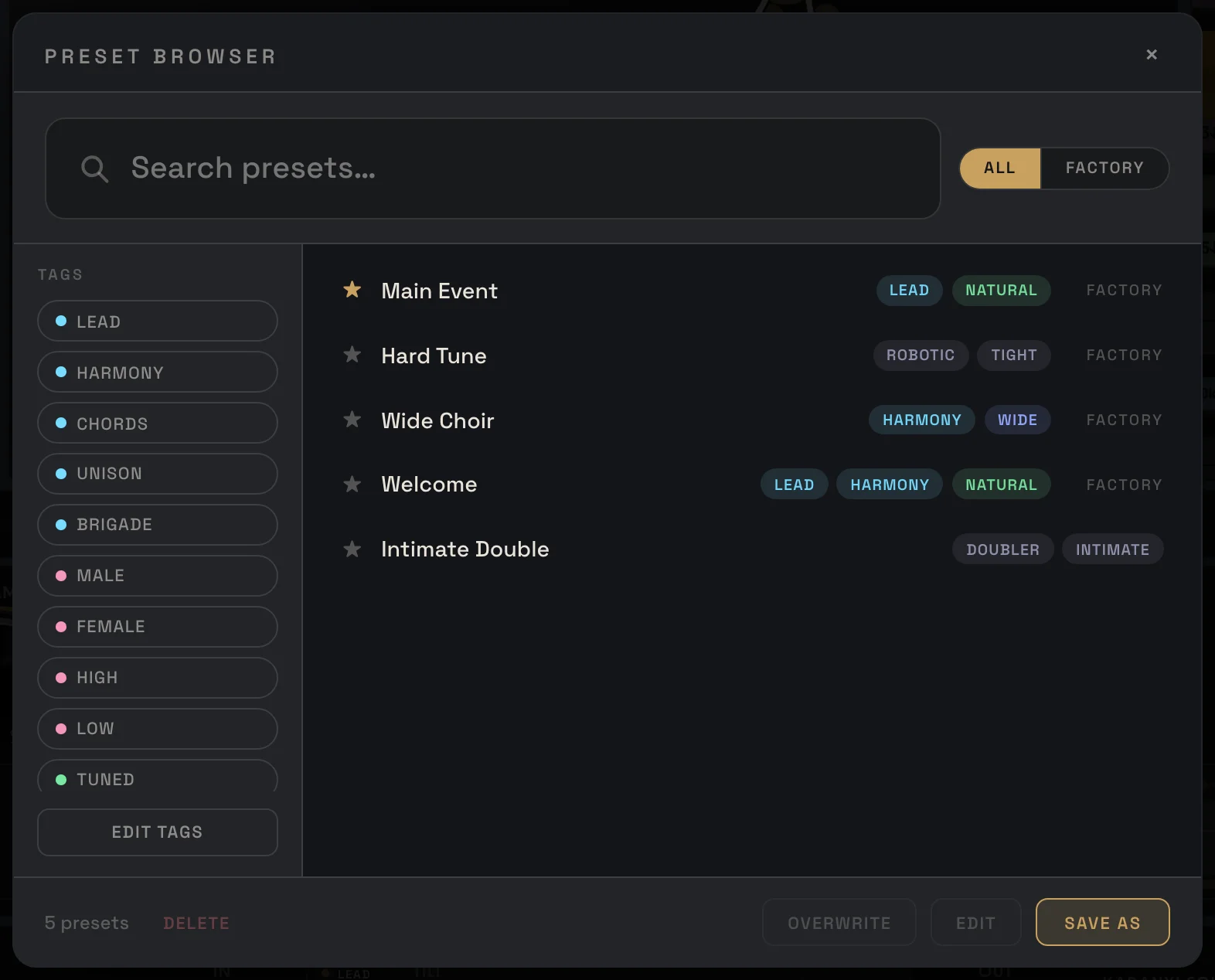
- Search finds presets by name as you type.
- ALL / FACTORY: show every preset, or only the factory ones.
- Star: click it to mark a favorite.
- Tags next to each preset tell you what it is for at a glance.
- Click a preset to load it.
Filtering by tags
Section titled “Filtering by tags”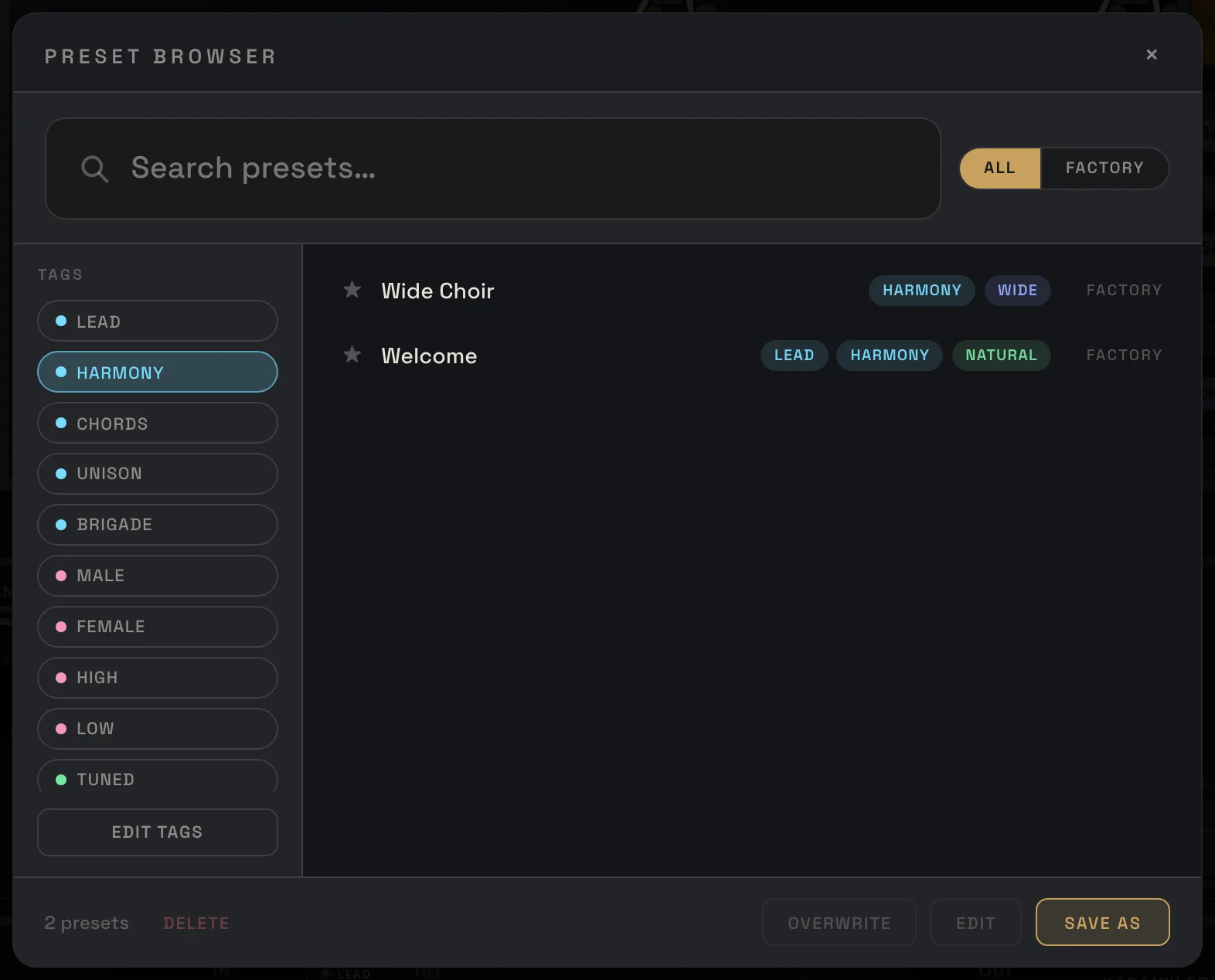
The tag list on the left filters the presets. Click HARMONY, for example, and you only see presets with harmonies. The tags cover the role (Lead, Harmony, Chords, Unison, Brigade), the voice (Male, Female, High, Low) and the sound (Tuned, Natural, Clean, Bright, Dark, Wide and more).
Saving your own preset
Section titled “Saving your own preset”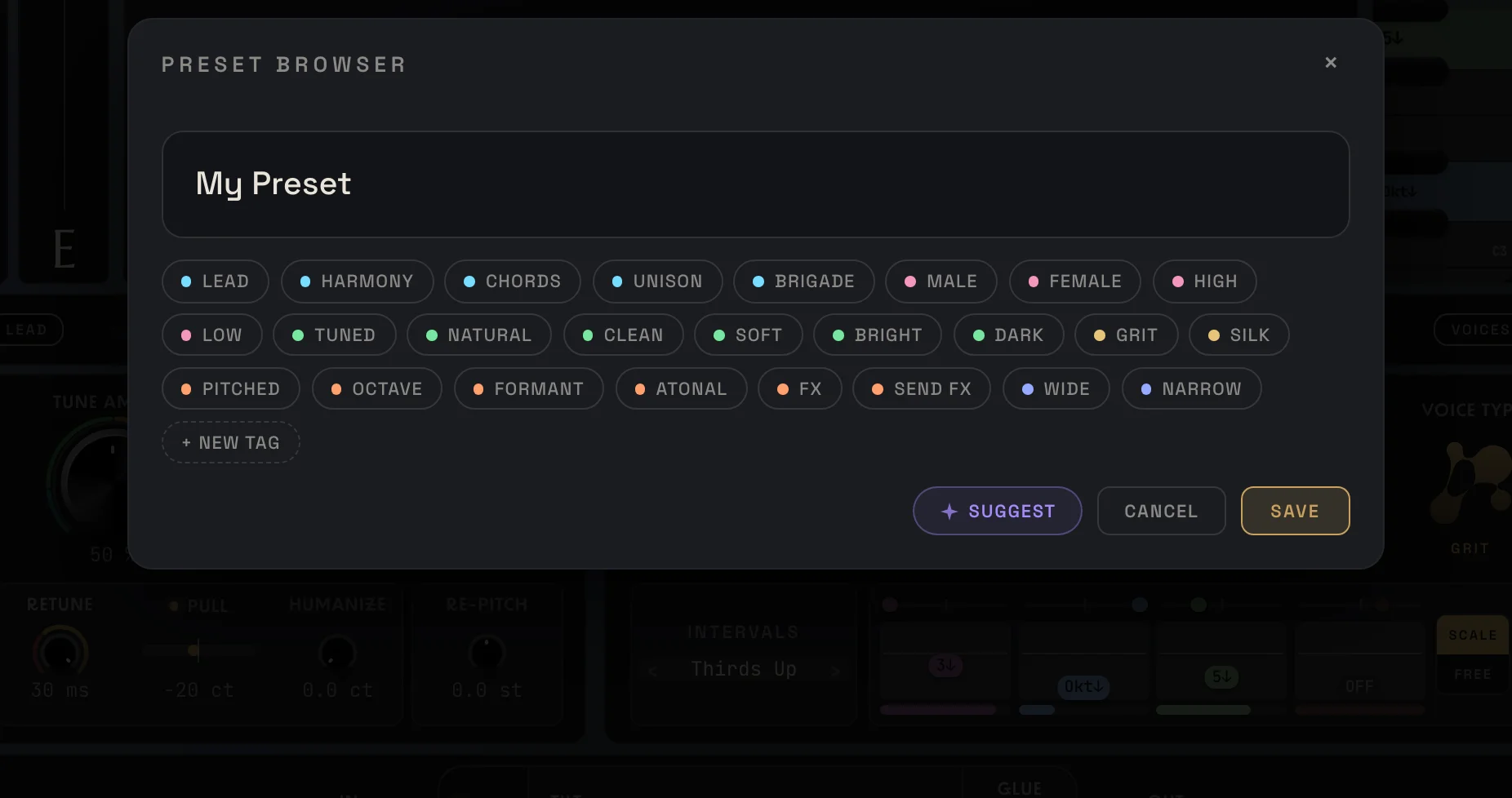
- Set up a sound you like.
- Open the browser and click SAVE AS.
- Type a name.
- Click the tags that fit. SUGGEST looks at your settings and lights up the tags it thinks fit. NEW TAG adds a tag of your own.
- Click SAVE.
OVERWRITE saves your current settings into the selected preset of your own (its tags stay). Click it twice to confirm. EDIT renames it or changes its tags. DELETE removes it. Factory presets cannot be overwritten or deleted, so you can always get back to them.
Editing tags
Section titled “Editing tags”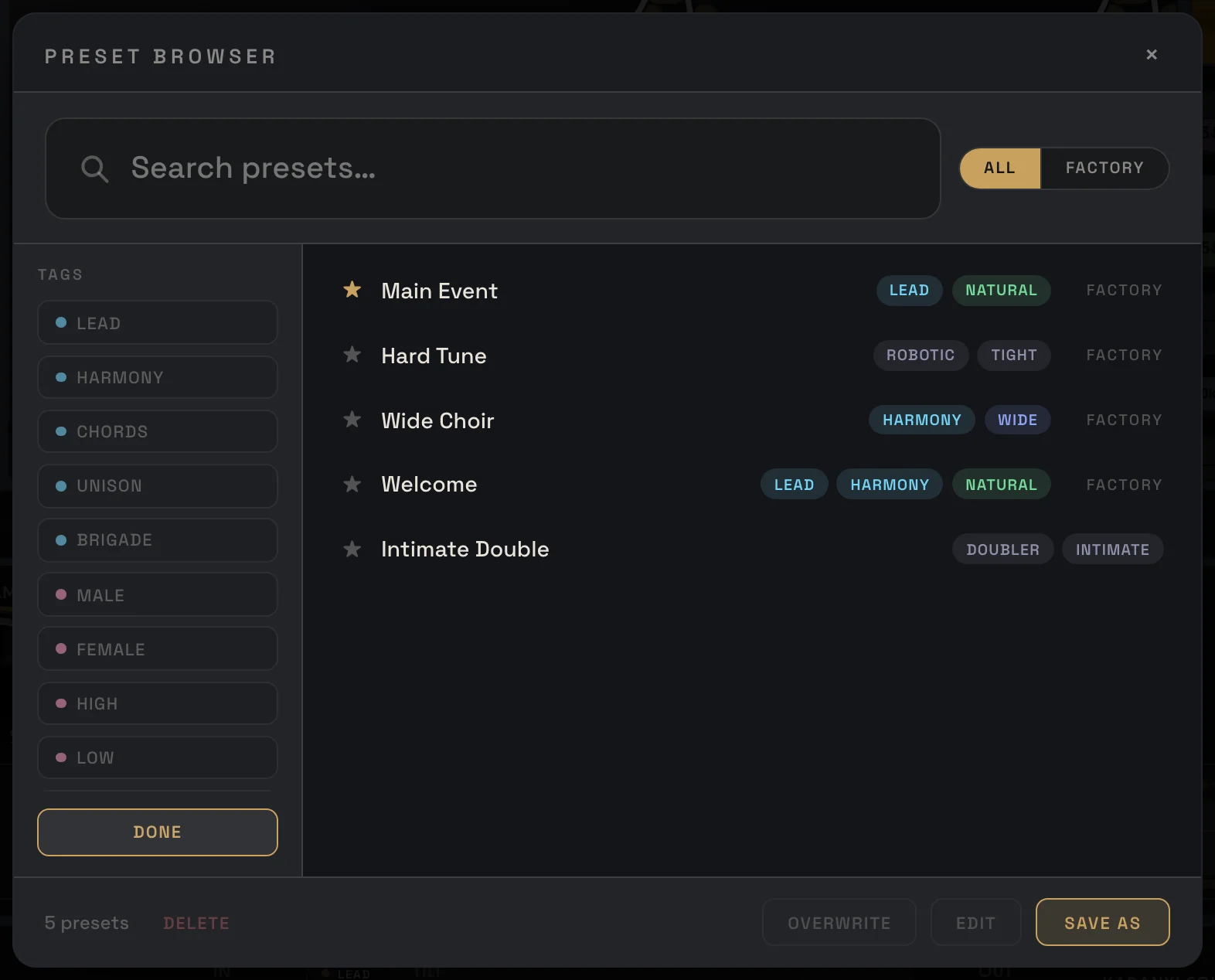
EDIT TAGS at the bottom of the tag list switches the tags to edit mode. Type a new name into a tag and press Enter to rename it. Click × and then DELETE to remove it. Click DONE when you are finished.
Where presets are stored
Section titled “Where presets are stored”Settings › Preset folder opens the folder on your computer. Copy presets from there to back them up or move them to another computer. Updating Voicemax never touches your own presets.
docs v0.0.5