Harmony Editor
By default the harmonies follow your key and scale. That works for most songs, but a scale doesn’t know your chords. The Harmony Editor fixes that: you place chord blocks on the timeline, and under each block the harmony voices sing the notes of that chord. You can also edit every harmony note by hand, just like the lead.
Opening it
Section titled “Opening it”Click EDITOR at the top of the display, then VOICES. Press play in your DAW. The harmony notes appear on the roll in the colors of the four voices.
The parts of the editor
Section titled “The parts of the editor”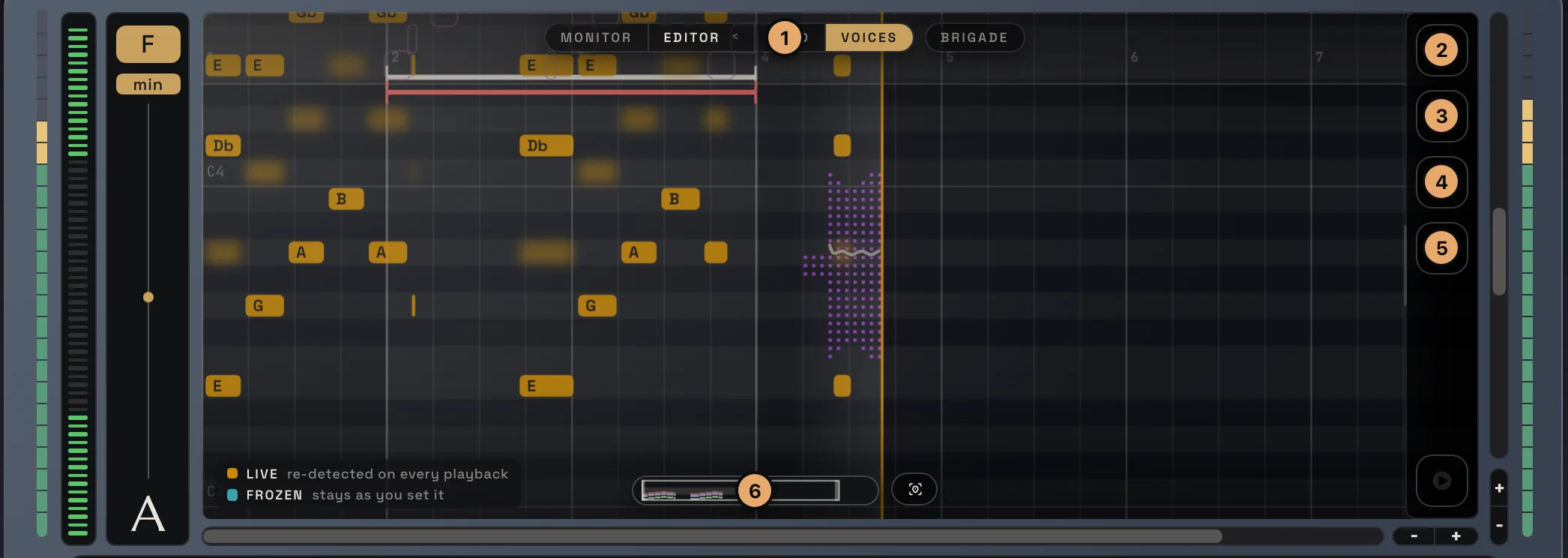
- View switch: you are in EDITOR › VOICES.
- Edit menu: tools and actions for notes and chords.
- Harmony Builder: the chords you can place.
- Record menu: MIDI recording of the harmonies.
- Cleanup menu: clear live notes, edits, chords or recordings.
- Mini map: the whole take in small, click to jump, drag the frame edges to zoom.
Your lead notes show faintly in the background so you always see what was sung. Settings › View › Lead notes sets how visible they are.
The Harmony Builder
Section titled “The Harmony Builder”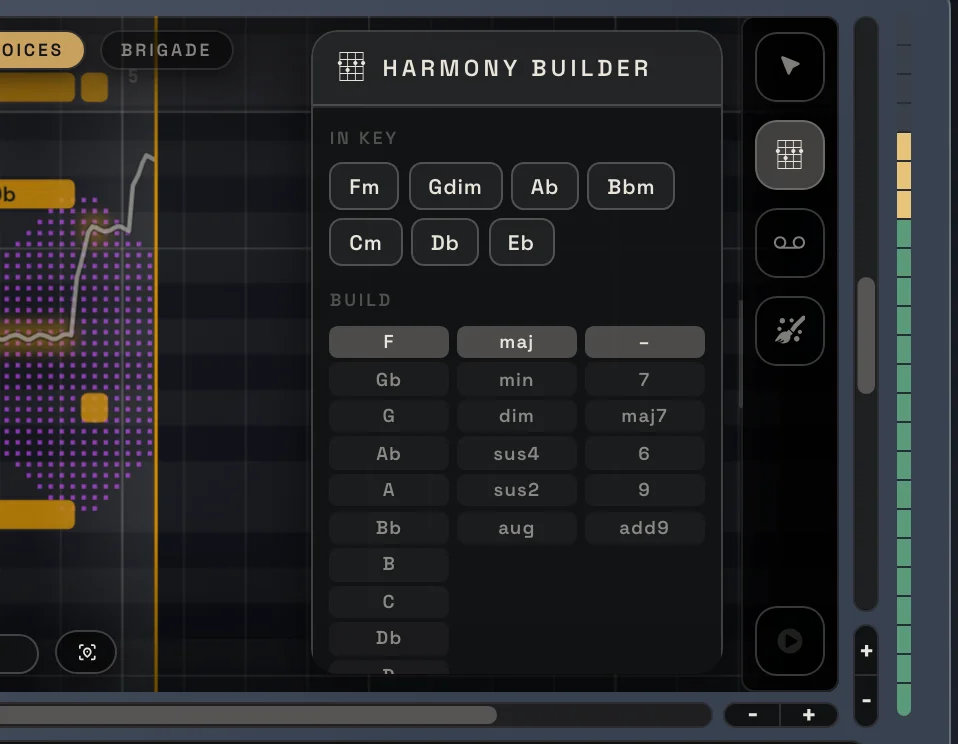
Click the chord icon on the right edge to open it.
- IN KEY: the chords that belong to your key and scale. In F minor these are Fm, Gdim, Ab, Bbm, Cm, Db and Eb. Start here, these always fit.
- BUILD: make any other chord in three columns: the root (F, Gb, G…), the type (maj, min, dim, sus4, sus2, aug) and an extension (7, maj7, 6, 9, add9). Click to pick, the chord name updates.
- Click a chord to hear it (if the preview is on in Settings › Audio).
- Snap: the grid the chord blocks start and end on.
Placing chords
Section titled “Placing chords”Drag a chord from the builder onto the timeline. It snaps to the grid. Drag its end to make it longer or shorter.
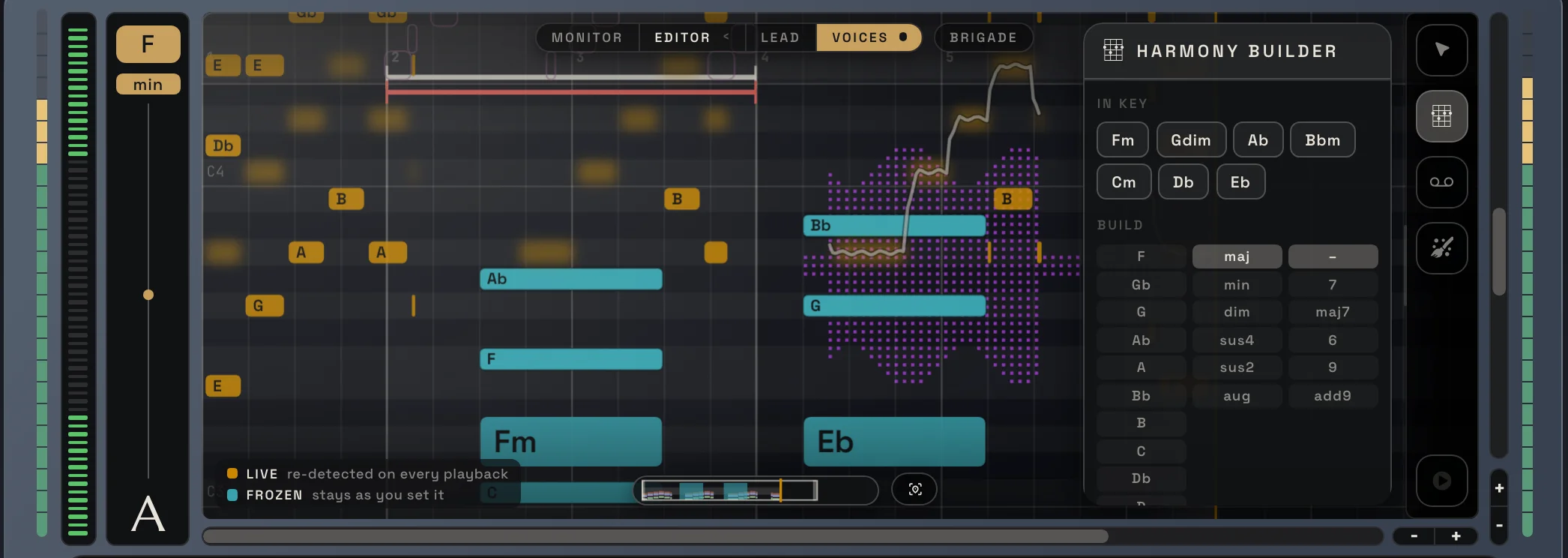
Here an Fm and an Eb block were dropped on the roll. Under each block the chord notes show as held teal notes, and the harmony voices sing those notes for as long as the block lasts. Where there is no block, the harmonies follow the scale again.
Example: why chords matter
Section titled “Example: why chords matter”Say your song is in F minor and the chorus goes Fm, Eb. With only the scale, the harmonies pick notes of F minor everywhere, even where the band plays Eb major underneath. With an Eb block there, the voices sing Eb, G and Bb, the notes of the chord the band plays. The harmonies stop rubbing against the backing track.
The right-click menu
Section titled “The right-click menu”Right-click anywhere on the roll. What you get depends on where you click.
On a chord block
Section titled “On a chord block”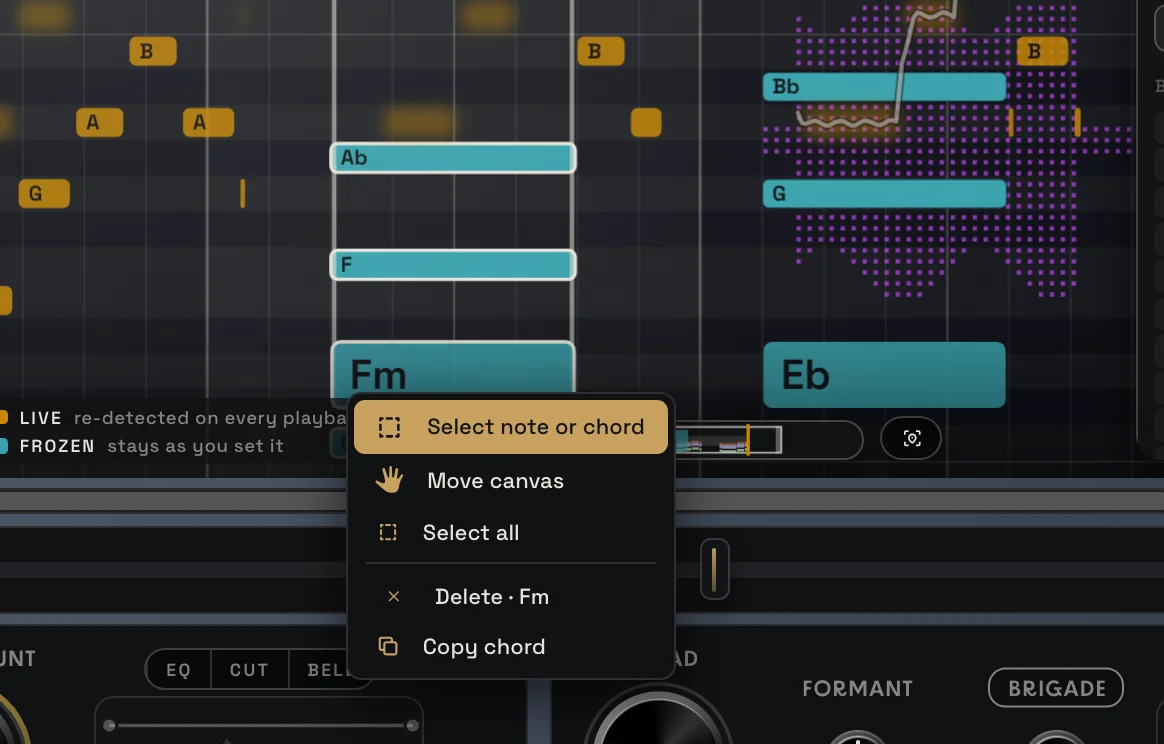
- Delete · (chord name): removes that chord block. The harmonies go back to the scale there.
- Copy chord: copies the chord block with its notes.
- Paste chord: shows up once you have copied something. It puts the copied chords where you right-clicked, snapped to the grid.
On a harmony note
Section titled “On a harmony note”The same note actions as in the Lead Editor: Split note, Move 1 octave up / down and Delete note. They work on that one harmony voice.
On a selection
Section titled “On a selection”With Select note or chord you can draw a box around notes and chord blocks. Right-click on the selection for Freeze Notes, Merge, Split, Move 1 octave up / down, Delete and Copy chord. Merge works voice by voice: the selected notes of each voice become one note on that voice’s most common pitch. Delete removes everything selected: notes, chord notes and chord blocks.
See the Lead Editor for pictures of these menus. They work the same way.
Editing harmony notes
Section titled “Editing harmony notes”The four harmony voices are editable notes, just like the lead:
- Click a live harmony note to freeze it. It stays at that pitch, whatever the scale or the chord says.
- Drag it up or down to change its pitch, drag its edges to change its length.
- Frozen harmony notes are saved with your project.
Record: MIDI
Section titled “Record: MIDI”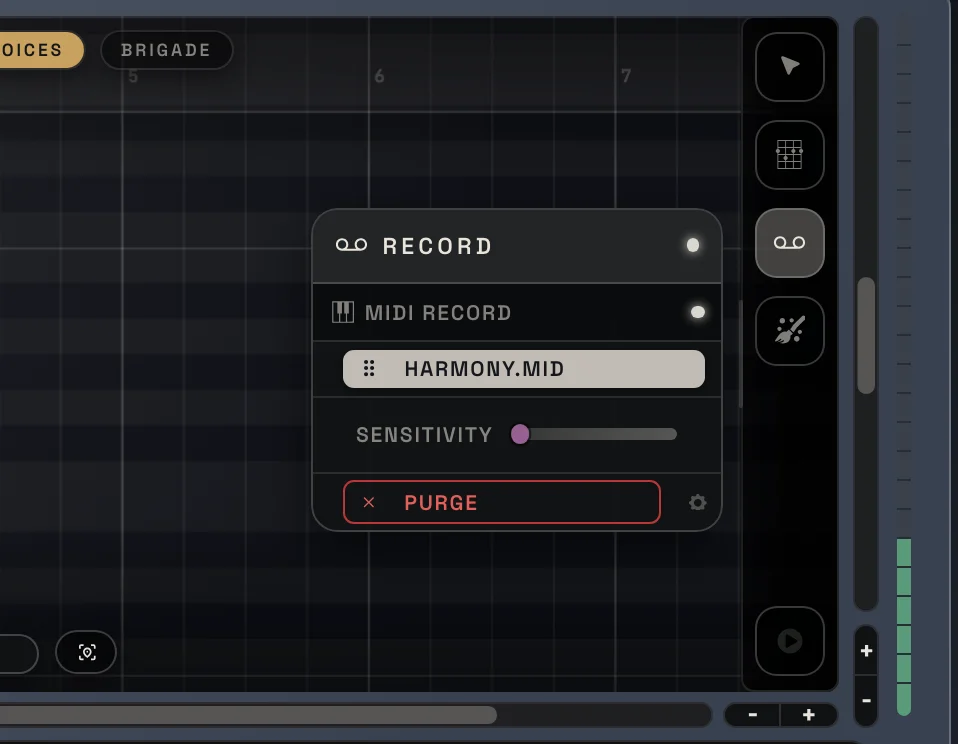
Works like in the Lead Editor, but it records the harmonies. Arm MIDI RECORD, press play, stop to end the take, then drag HARMONY.MID onto a MIDI track. Play the harmonies with strings, a synth pad or a real choir library.
Cleanup
Section titled “Cleanup”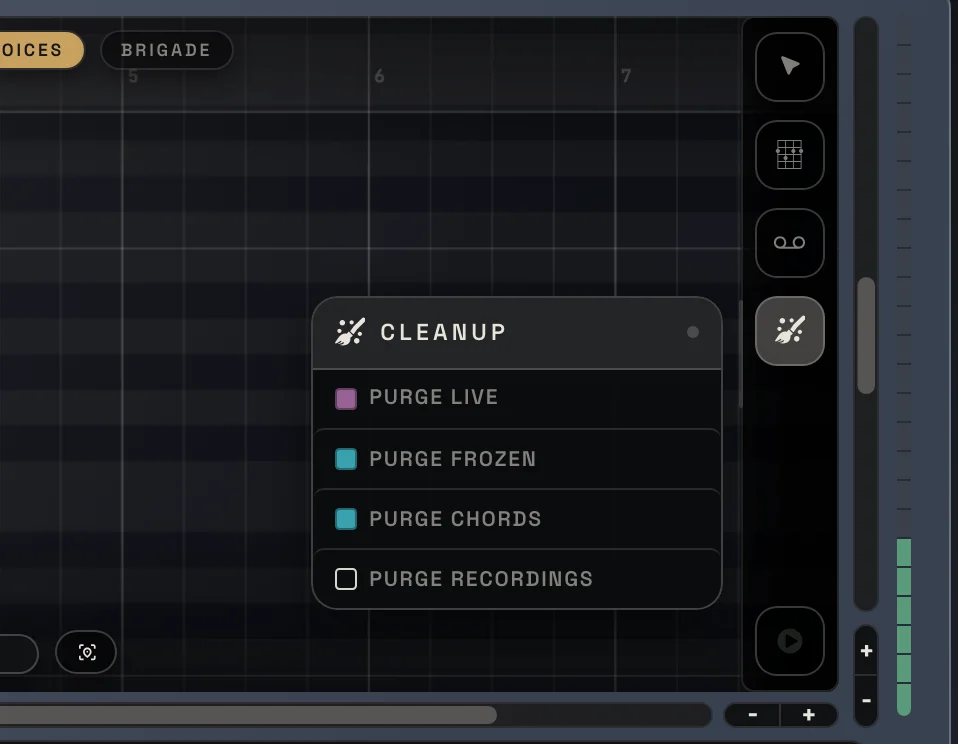
- Purge Live: forgets the live harmony notes, keeps your edits.
- Purge Frozen: removes your harmony edits, keeps the live notes.
- Purge Chords: removes every chord block.
- Purge Recordings: hides the harmony MIDI recording from the screen. The file stays.
Purge Live, Purge Frozen and Purge Chords can be undone with UNDO in the header.
Next: Preset browser
docs v0.0.5