Lead Editor
The Lead Editor shows the melody you sang as notes on a piano roll, lined up with the bars of your song. Normally Voicemax decides on its own which note you meant. In the Lead Editor you decide: you can pin any note to the right pitch, move it, cut it, merge it, or draw a completely new melody.
Opening it
Section titled “Opening it”Click EDITOR at the top of the display, then LEAD. Press play in your DAW and sing (or play back your vocal track). The notes appear on the roll as they are heard. Stop the DAW and they stay there, ready for editing.
The parts of the editor
Section titled “The parts of the editor”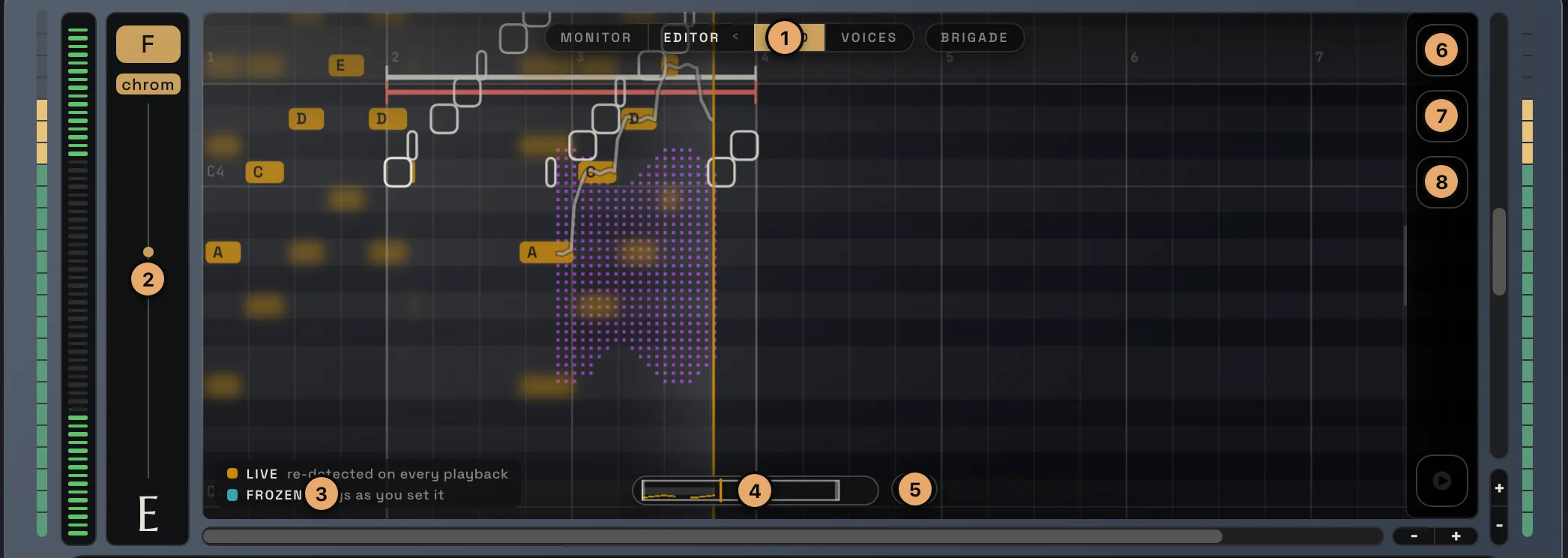
- View switch: MONITOR, EDITOR (LEAD / VOICES) and BRIGADE.
- Key column: your key and scale, and the note you are singing right now. The notes on the roll are named in this key.
- Legend: the two kinds of notes. LIVE (orange) and FROZEN (teal). More on them below.
- Mini map: the whole take in small. Click to jump there, drag the edges of the frame to zoom.
- Locate: jumps the view to where your DAW’s playhead is.
- Edit menu: the tools and actions for notes.
- Record menu: MIDI recording of the lead.
- Cleanup menu: clear the live notes, your edits or the recordings.
The bar numbers run along the top, the piano on the right shows the pitch of each row, and the + / − buttons in the bottom right corner zoom in and out.
Live Notes and Frozen Notes
Section titled “Live Notes and Frozen Notes”This is the most important idea in the editor.
- Live Notes (orange) are what Voicemax heard. They follow the audio and are detected again on every playback. If the singer goes off, the Live Note goes off with them.
- Frozen Notes (teal) are notes you have touched: clicked, dragged or drawn. A Frozen Note overrides the detection. The lead is tuned exactly to it, whatever the tracker hears, every time you play the song.
Example: freezing a note
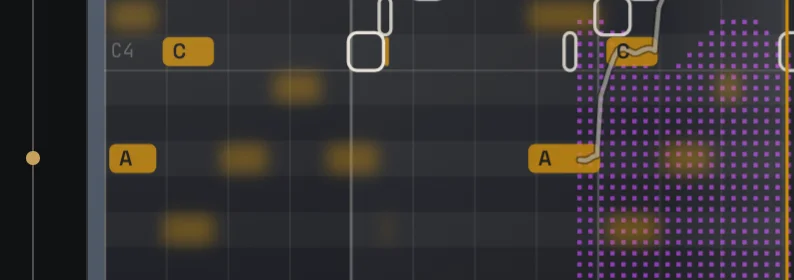
Section titled “Example: freezing a note”| Before | After one click |
|---|---|
 |
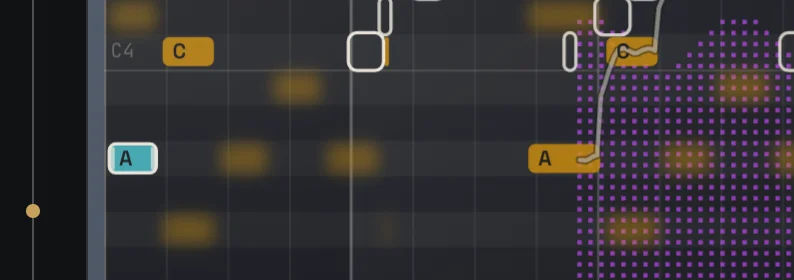 |
Click the orange A on the left and it turns teal: it is frozen. From now on that note is always tuned to A, even if the singer drifts or the tracker would pick another note.
Working with notes
Section titled “Working with notes”With the Move canvas tool (the hand):
- Click a Live Note to freeze it.
- Drag a note up or down to change its pitch. It snaps to semitones.
- Drag the left or right edge of a note to change where it starts or ends.
- Double-click a note to select it.
- Drag empty space to move the view.
With the Select note tool (the dotted box):
- Draw a box around notes to select them.
- Drag a selected note and the whole selection moves with it.
- Shift + click adds a single note to the selection.
The right-click menu
Section titled “The right-click menu”Right-click anywhere on the roll. What you see depends on where you click.
On empty space
Section titled “On empty space”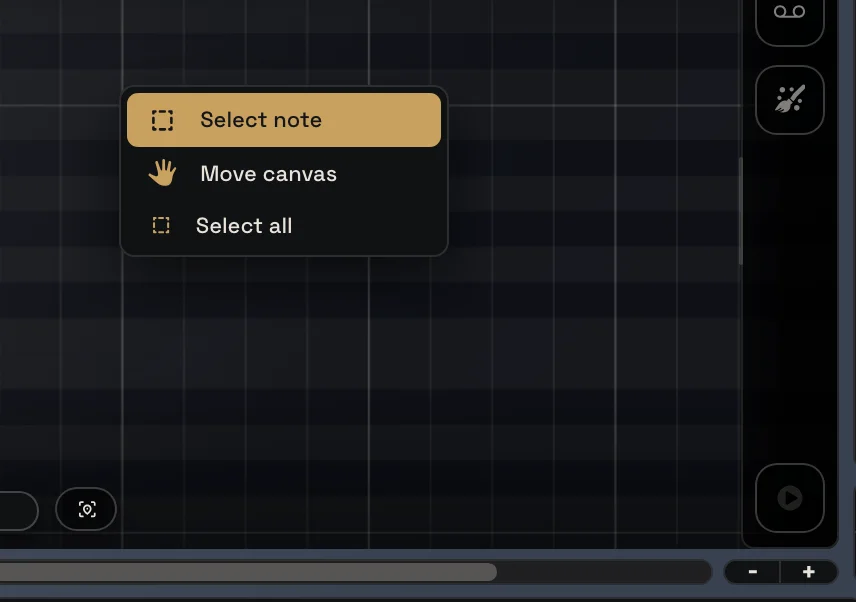
- Select note / Move canvas: switch the tool. The current tool is highlighted.
- Select all: selects every note of the take.
On a note
Section titled “On a note”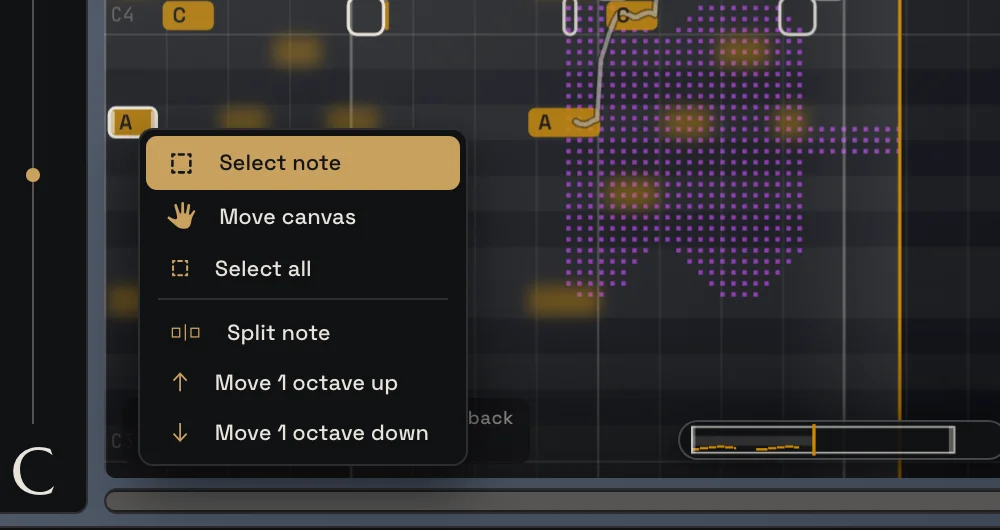
The actions work on the note you clicked:
- Split note: cuts the note in two at the point where you clicked. Use it when two sung notes were heard as one long note.
- Move 1 octave up / down: the note jumps an octave. Use it when the tracker picked the wrong octave, which happens on very low or breathy notes.
- Delete note: removes a Frozen Note. The Live Note detected there comes back.
On a selection
Section titled “On a selection”First select some notes (here with Select all). The selected notes get a light outline, and a dashed frame shows the selection:
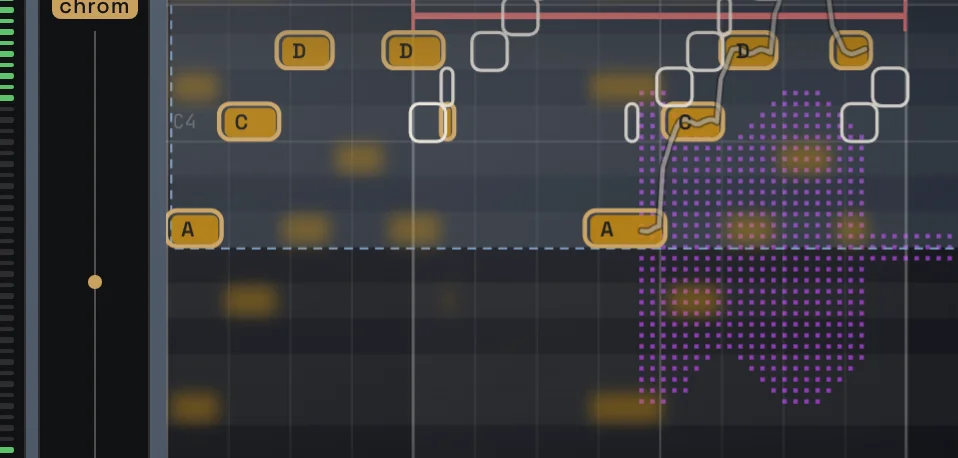
Then right-click on one of them:
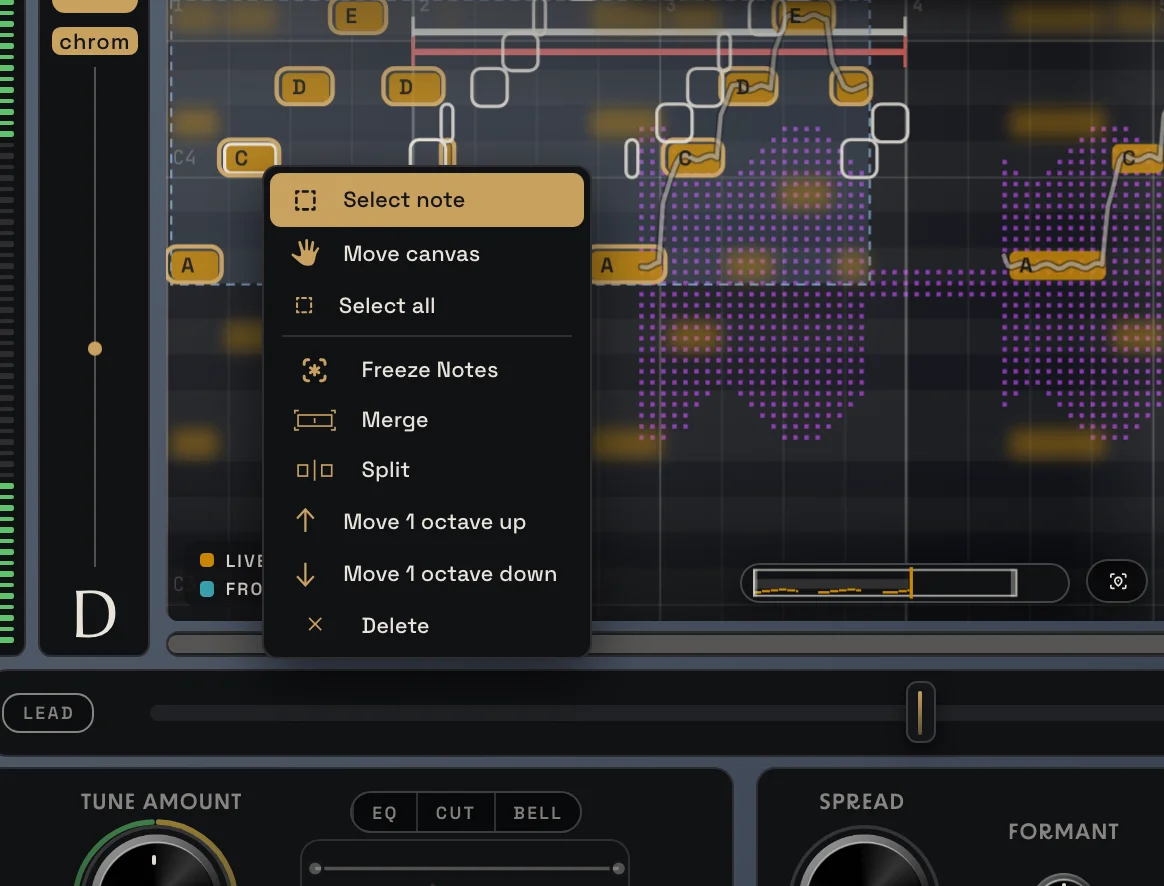
The actions now work on every selected note:
- Freeze Notes: freezes all selected Live Notes in place, at the pitch they have now. A quick way to “lock in” a good take.
- Merge: the selected notes become one long note, on the pitch that appears most often among them. Great for a long held note that was heard as a wobbly row of short notes.
- Split: cuts the selected notes at the edges of the selection box.
- Move 1 octave up / down: moves the whole selection by an octave.
- Delete: removes the selected Frozen Notes.
The side menus
Section titled “The side menus”The icons on the right edge of the editor open its menus. They hold the same tools and actions as the right-click menu, plus recording and cleanup.
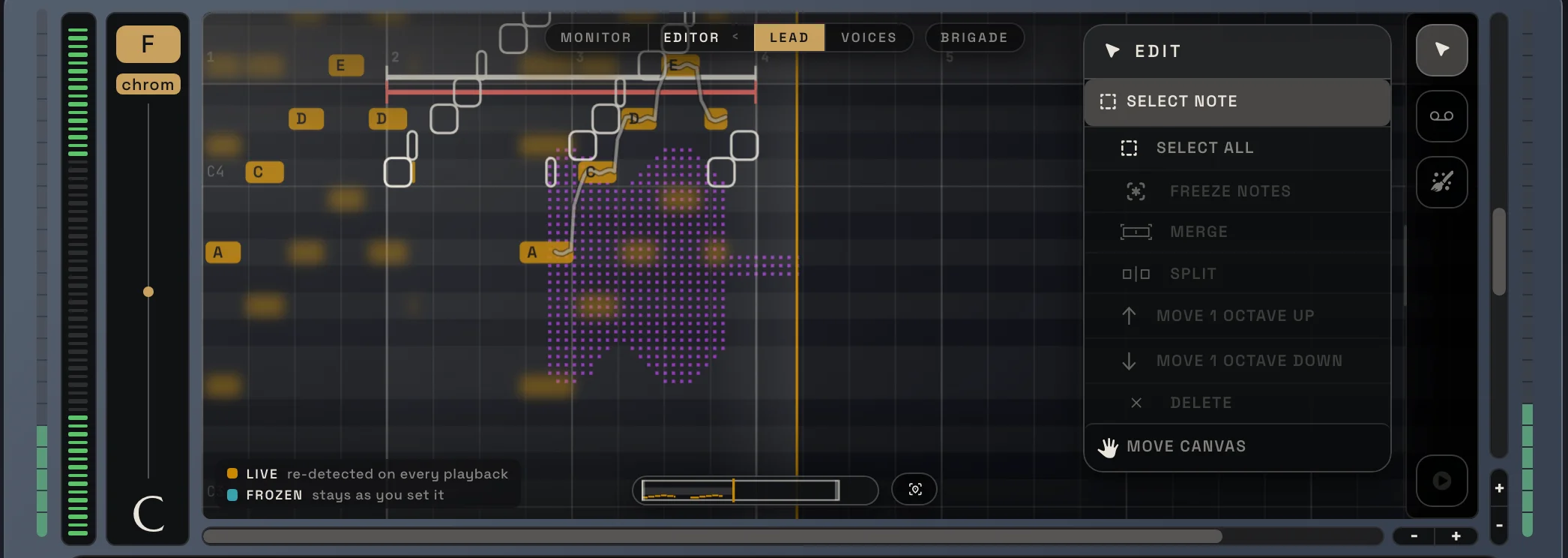
Select note, Select all, and the selection actions (Freeze Notes, Merge, Split, Move 1 octave up and down, Delete). The actions light up only when something is selected. Move canvas is at the bottom.
Record: MIDI
Section titled “Record: MIDI”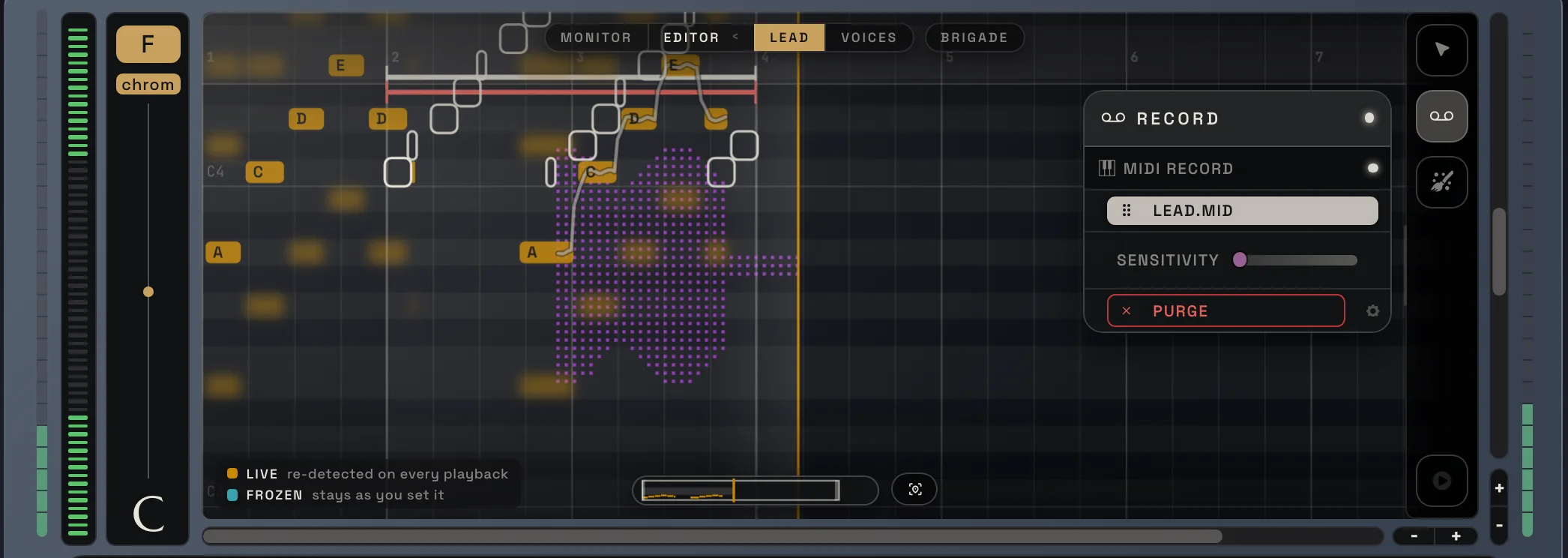
MIDI RECORD turns your lead into MIDI notes.
- Click the record button next to MIDI RECORD to arm it.
- Press play in your DAW. Recording runs while the DAW plays.
- Stop the DAW to end the take. The recorded notes show as white outlines on the roll.
- Drag LEAD.MID straight onto a MIDI track in your DAW.
Sensitivity sets how clean the MIDI is: left keeps every note, right keeps only the most stable ones. Frozen Notes always stay. Purge hides the recording from the screen. The file stays in your MIDI folder.
Use it to double the vocal melody with a synth, or to get the melody into your DAW for writing.
Cleanup
Section titled “Cleanup”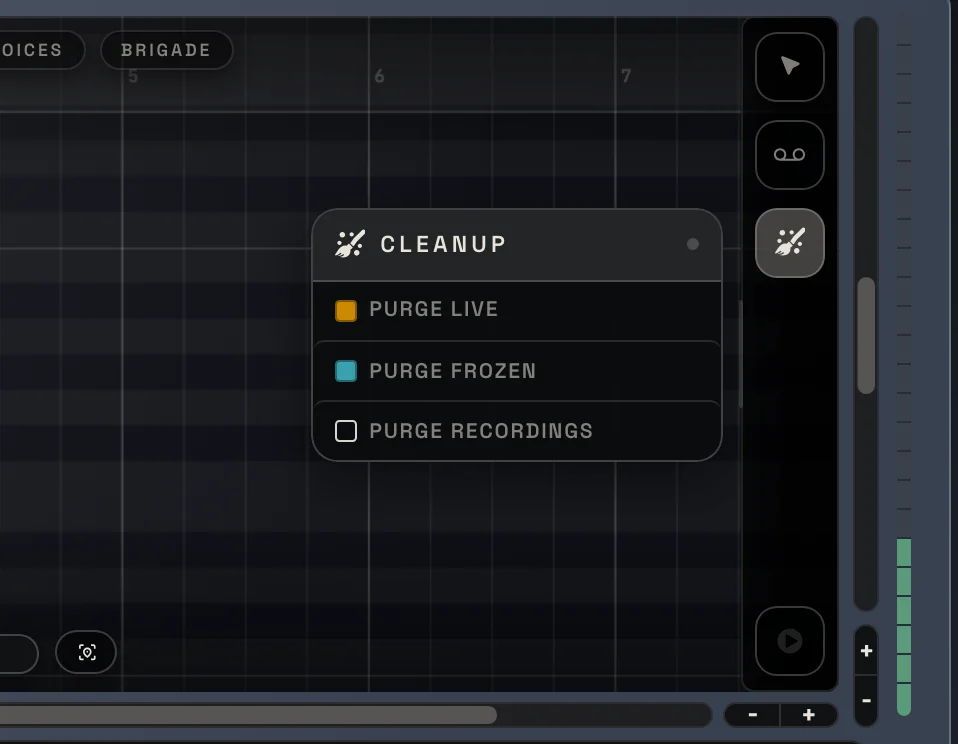
- Purge Live: forgets the Live Notes, keeps your Frozen Notes. Use it to start the detection fresh, for example after you changed the vocal take.
- Purge Frozen: removes all your Frozen Notes, keeps the Live Notes. Back to automatic tuning.
- Purge Recordings: hides the MIDI recordings from the screen. The files stay.
Purge Live and Purge Frozen can be undone. The lamp on the menu lights up while you have Frozen Notes.
Getting around
Section titled “Getting around”| Mac | Windows | |
|---|---|---|
| Move up and down (pitch) | scroll | scroll |
| Move left and right (time) | trackpad sideways | Shift + scroll |
| Zoom | ⌘ + scroll, or pinch | Ctrl + scroll |
| Move the view | drag empty space | drag empty space |
Good to know
Section titled “Good to know”- Frozen Notes are saved with your DAW project.
- UNDO / REDO in the header step back through every edit.
- Settings › View sets how visible the waveform, the pitch line and the MIDI outlines are in the editor. See Settings.
Next: Harmony Editor
docs v0.0.5