Cloudmax 3
Cloudmax 3 1.1
Cloudmax 3 turns any sound into space and texture. Two engines work together: Texture, a granular engine that chops your sound into four streams of small grains, and Resonator, a reverb that gives those grains a room to live in. You can move both with a few big knobs, or open the Cloud Editor and shape everything by dragging.
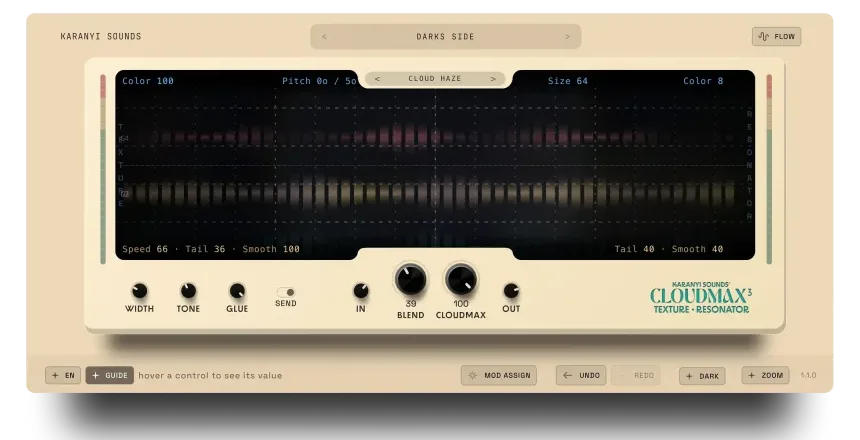
Eight Cloud Models change the whole character at once. One LFO can move many controls in time with your song. The FLOW button listens to your audio for a few seconds and offers two ready-made settings to try.
What it is for
Section titled “What it is for”- Vocals: smear a single take into a wall of breath, or add a choir of pitched copies behind it.
- Guitars and keys: a granular tail under a clean signal, with the reverb adding body.
- Drums and percussion: tempo-synced grains that chop a loop into new patterns.
- Sound design and foley: stretch a field recording, a footstep or a breath into a long bed.
The window at a glance
Section titled “The window at a glance”The window has two views. The full view shows both engines. The Cloud Editor replaces the two engine panels with one big display. Double-click the small display in the middle to switch.
| Area | What it does | Page |
|---|---|---|
| Texture panel (left) | The granular engine: pitch, Speed, Tail, Smooth, Color, Width and Q | Controls |
| Pitch modes | Continuous, Snap and Dual pitch for the grains | Controls |
| Cloud Model selector (center, top) | Eight models that reshape the whole sound | Controls |
| Mini display (center) | The grain display, and under it the LFO | Controls |
| Resonator panel (right) | The reverb: Size, type, Pre-Dly, Tail, Smooth and Color | Controls |
| Cloud Editor | A big display where you drag the main values | Controls |
| Preset bar (top) | Step through presets or open the browser | Presets |
| FLOW (top right) | Listens to your audio and offers two variations | FLOW |
| Bottom row of knobs | Width, Tone, Glue, Send, In, Blend, Cloudmax, Out | Master row |
| Logo (bottom right) | Click to bypass the plugin | Master row |
| Footer | Language, Guide, Mod Assign, Undo, Redo, skin, zoom | Footer |
Quick start
Section titled “Quick start”- Put Cloudmax 3 on a track as an insert, or on a send or return track. The first time, start the trial or enter your key.
- Play some audio through it. Cloudmax 3 needs signal to work with.
- Click the preset name at the top and pick a preset that sounds close to your source. Filter by tags such as Vocals, Drums or Pads.
- Turn the big Cloudmax knob to set how much effect you hear. On a send track, turn it all the way up, or press SEND.
- Try another Cloud Model with the arrows next to its name.
- Want a quick idea? Press FLOW, let it listen, click a variation and press Approve.
New here? Install and updates are explained on the general pages: Install, Activate your license and Updating.
Next: Controls
docs v0.0.14